
First time uploading with G.Y.R.O.?
We want all our artists to have the smoothest possible experience when logging in and uploading their first release.
Please see below for our step by step guide on how to upload.
- Log in to your artist dashboard and click Create New Release.
- On the Basic Details page, enter your release title, main artist information and artwork. If this is your first time uploading with us under this artist name, you will need to click ‘Create New’ and enter your new or existing artist information.
- Enter your release date. This is the date the release will go live. If you are transferring from another distributor, please mark it as a re-release and enter the original release date. You can also add an iTunes Preorder Date here.
- Enter your Primary and Secondary genres. Under Language, tick ‘This is an instrumental release’.
- Enter your label, copyright information and publishing details. If you already have a UPC, you can enter it here.
- Choose your stores for distribution from the provided list of DSPs.
- Choose whether you would like to distribute your release worldwide or to selected countries only.
- Before you can start uploading your individual tracks, you will need to click Save Draft.
- Click ‘Add Track’. Upload your audio file, enter your track information and assign an ISRC (if you are transferring your release from another distributor, please use your existing ISRC). Then click Save Track.
- Repeat Step 9 for all tracks. You can reorder your track list by dragging and dropping, but please note that you won’t be able to reorder the tracks after the release has been delivered.
- Click ‘Next’ to proceed to the Checkout page. During this step, you may also enable Content ID for this release. Click ‘Checkout’ to finalise your submission.
- Your release will be marked ‘Pending’ until the Quality Control team reviews and processes it for delivery. The status will then change to Delivered.
A common issue with release uploads is to do with artwork. When uploading your artwork please ensure the following:
1. Clear in resolution (not blurry) - preferably 300 dpi
2. 3000 x 3000 pixels in size
3. If you wish to include text on the artwork it can include; the name of the release AND/OR the name of the artist. The text must match the release title.
4. File size no bigger than 10MB
5. JPEG or PNG format
If you are having any issues throughout the process, please free to email us with screenshots of the problem that is occurring.
What happens to your release now?
First your release goes into ‘’Pending’’ status.
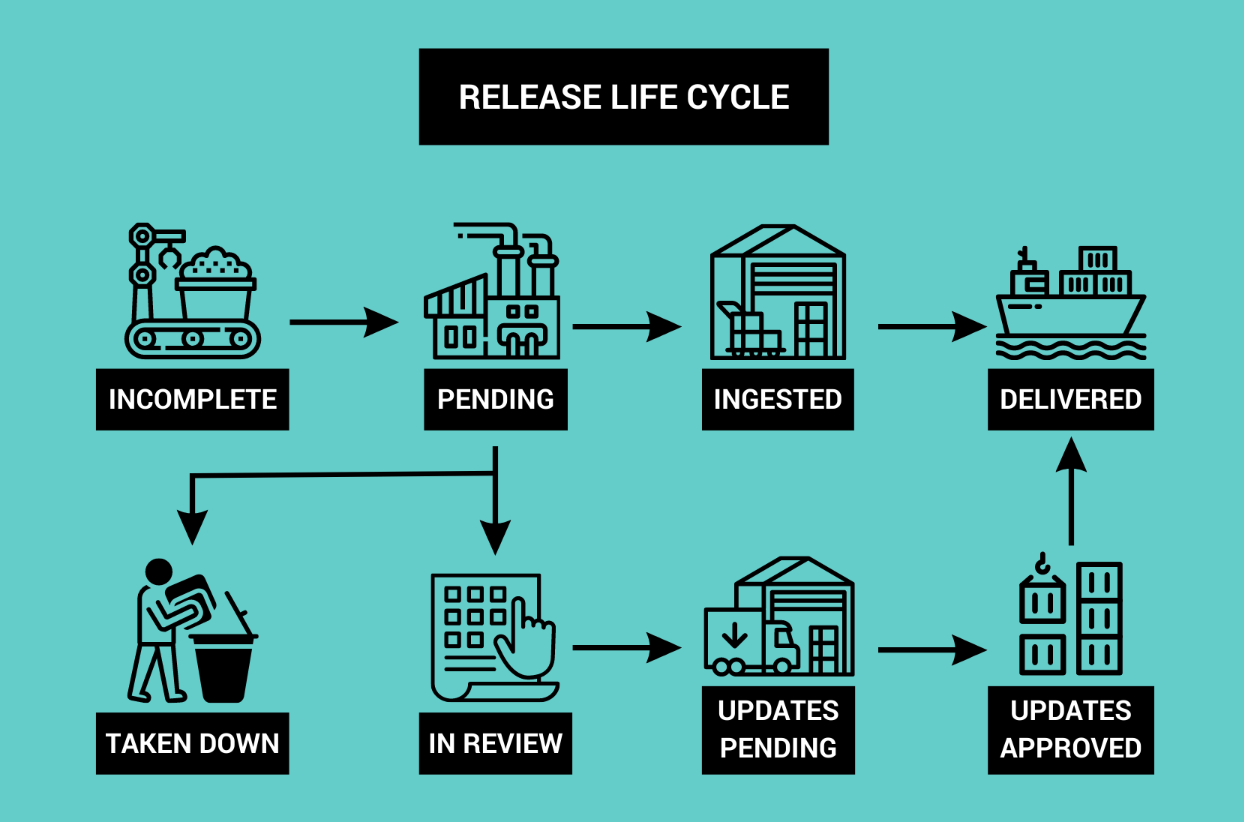
Pending is where releases go after an artist has uploaded/paid for a release from their artist dashboard. Even before the artist submits their release, it will appear on the ‘Incomplete’ view (which we the G.Y.R.O. will be able to see).
Our distribution team checks through each release in pending to ensure that it adheres to the DSP style guides. Our team puts a large emphasis on the importance of our quality checks. We will go through each release and track thoroughly and look out for any style guide discrepancies. If a release is delivered to DSP’s and is in violation of any criteria, we will be issued a ‘ticket’, which will cause delivery issues down the road.
After releases are processed in pending, the albums will move to ‘Ingested. Once the releases have been fully uploaded to the selected DSP’s, the releases will then move to ‘Delivered’ status. Releases will be moved to ‘In Review’ if releases do not meet the criteria requirements.
Please see below for a graphic that shows the process.
If there are any issues with the release it will either be placed in ‘takendown’ or ‘review’ status. From here one of our Quality Control team will reach out to the account holder and explain why the release has not been processed.
We strongly recommend uploading at least 2 weeks prior to your desired release date. If you are wanting to also utilise our Playlist Pitching services, we recommend uploading 6-8 weeks prior to release date.
Once your release is delivered, you are able to generate your pre save link and start promoting your release and share it with your fans! To generate this link go to your catalogue and click the little flame icon into the top right of the screen.
During any of the above processes, our support agents are more than happy to run through this with you and help answer any questions or issues you may have.
If reaching out via email we ask that you supply us with any screenshots or screen recordings you have of the issue. This will assist us in getting you a fix as fast as possible.
Thank you for reading and happy uploading!
!%20(3).jpg)

